

Offline Nt Password & Registry Editor
Forgot your Windows 10 password? Typically, a user would requite upwards, reinstall the operating system (Bone), and start from scratch. Just you're not a typical user. Instead of doing an OS reset, why not try a user account password reset beginning using the Offline NT Password & Registry Editor (NTPasswd) utility?
In this tutorial, acquire how to apply the NTPasswd utility equally a "break-glass-in-case-of-emergency" response to reset lost or forgotten Windows user or ambassador passwords.
Are you now excited to hack your way into a locked computer? Hold on to your blackness hat, and let'southward dive in.
Prerequisites
Since this tutorial is hands-on, you'll demand the following requirements if you lot programme to follow along.
- A Windows 10 computer. This tutorial will be using a Windows ten version 20H2, simply earlier versions should work besides.
- A test or dummy Windows 10 local user account. This user account is optional but recommended if you don't want to test this tutorial with production or live user account. This tutorial will be trying the password reset on a test business relationship with the name Dummy.
- Make sure that the computer can kick from a USB bulldoze and supports legacy boot mode. NTPasswd boot disks do not support UEFI boot fashion.
- A USB wink drive with at least 50MB free space where you'll be installing NTPasswd. This tutorial assumes that y'all've already fastened the USB drive to the figurer and know its drive letter of the alphabet. In this tutorial, the USB drive letter is E.
- Download the latest NTPasswd USB zip file. As of this writing, the latest zip file proper name is usb140201.zippo, and the size is approximately 18MB.
Creating a Bootable NTPasswd USB Drive
To boot your computer into the NTPasswd environment, you must commencement create bootable media containing the NTPasswd files. Don't worry. Doing so only takes running two lines of command. You don't need to download any tertiary-party tools, too.
Follow the steps beneath to create an NTPasswd bootable USB bulldoze.
1. Open PowerShell as admin.
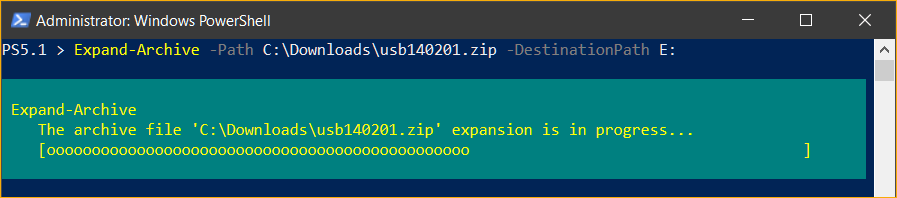
2. Inside the PowerShell window, extract usb140201.zero file contents to the root of the USB drive. To do and so, run the Expand-Archive command below. This command assumes that the NTPasswd goose egg file is in the C:\Downloads folder and the extract destination is the root of drive E.
Aggrandize-Archive -Path C:\Downloads\usb140201.null -DestinationPath E: Y'all should come across a similar progress indicator as to the image below.
iii. Afterward extracting the NTPasswd zip file, run the syslinux.exe command below to make the USB drive bootable. This command assumes that the USB drive letter of the alphabet is E. Change the drive letter if needed.
The NTPasswd zip that you previously extracted to the USB drive already includes the
syslinux.exeexecutable file. Y'all do not need to download the file separately.
# (m) -- Install the primary boot record (MBR). # (a) -- Mark the partition equally Agile. E:\syslinux.exe -ma E: The command should just take approximately one second to complete, and in that location are no output messages. In one case the command completes, you at present have a bootable NTPasswd USB drive.
Booting into NTPasswd
At present that you've created your password reset disk, it's fourth dimension to put it to the test. Earlier you tin can start resetting passwords, you starting time need to boot your computer into the NTPasswd environment. Follow the steps below to practice so.
Note: NTPasswd is not capable of accessing encrypted drives, such as Bitlocker-encrypted drives. Co-ordinate to the NTPasswd FAQ, there is no program to add support for encrypted drives.
1. Starting time, turn off your computer if you haven't yet.
2. Ability on your computer and boot it to the USB drive. Typically, you have to press a cardinal while the calculator is starting upwards (F2, Del, F12…), showing you the boot menu. Consult your computer's manual if needed to learn how.
iii. At the kicking prompt, type in boot vga=ask and press Enter. Doing so gives you the option to choose the video mode.
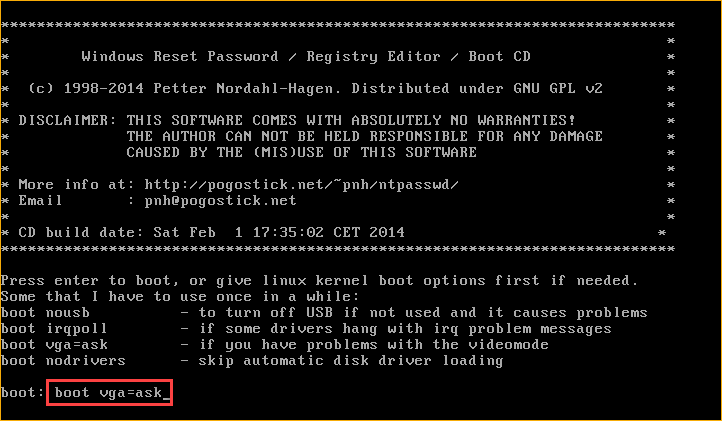
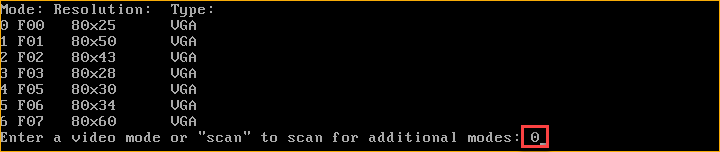
four. At the post-obit prompt, hit Enter again to listing the available video modes.

five. Next, on the listing of video modes, type 0 and press Enter. This pace ensures that NTPasswd uses the lowest possible resolution to avoid showing asymmetric screen output.
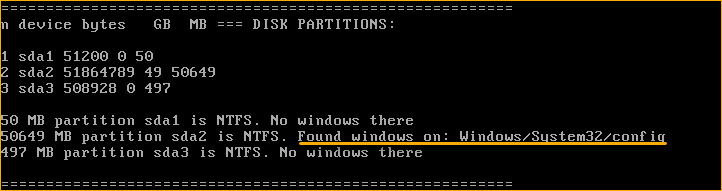
Afterward selecting the video mode, NTPasswd then automatically detects the deejay partitions. As you can see below, the utility automatically determines which partition(s) may contain the Windows operating arrangement.
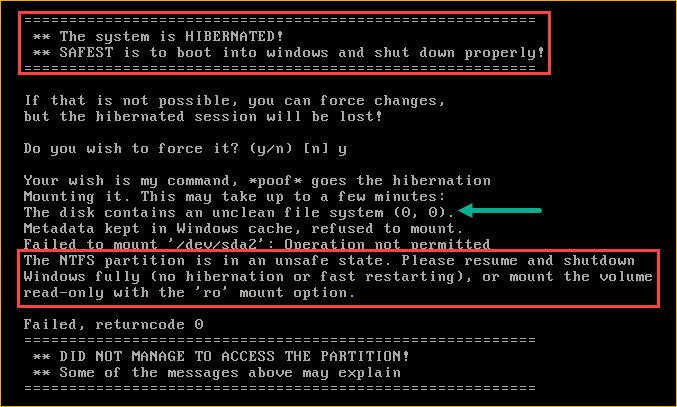
Note: If the computer did not shut down properly or in hibernate, NTPasswd would complain that the NTFS sectionalisation is unsafe, every bit you can see below. In which case, yous take to boot to Windows and close down the computer properly before booting into NTPasswd again.
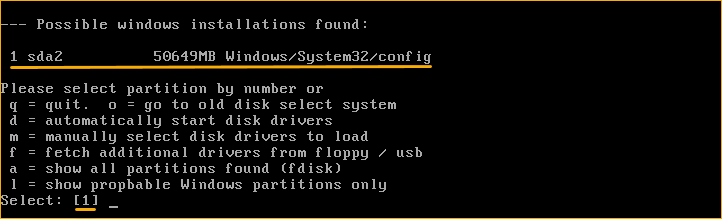
6. On the list of Possible windows installations, typically, at that place would only exist one Windows installation on a computer, as yous can see below. In which example, you simply need to press Enter to accept the default selection.
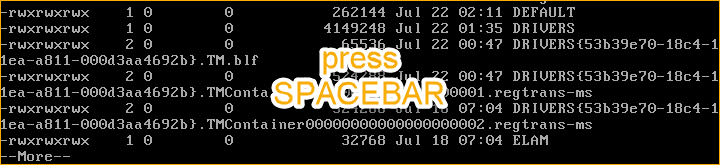
vii. After selecting the Windows partition, NTPasswd lists files on the screen. Press the SPACEBAR once to exit the files listing.
Resetting a User Password with NTPasswd
Now that y'all've booted your computer into NTPasswd, you're ready to start resetting passwords. By following a serial of prompts, you can reset the password of any Windows 10 local accounts on the computer. To do so, proceed as follows.
1. On the Select which part of registry to load carte du jour, printing Enter to accept the default selection, which is ane – Password reset [sam]. Selecting this option will load the SAM Windows registry hive.
The SAM registry hive contains the local user accounts and passwords data.

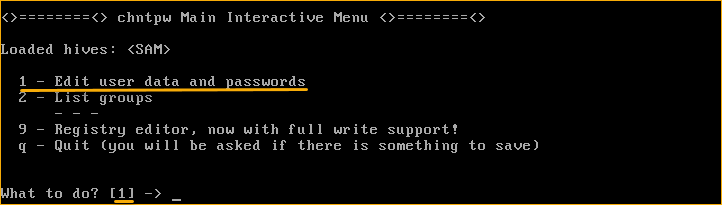
2. On the Master Interactive Menu that follows, printing Enter to accept the default choice, which is 1 – Edit user data and passwords.
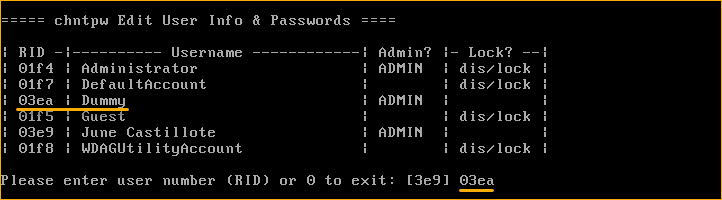
3. Next, on the list of user accounts, look for the user account whose countersign yous want to reset. Find the user's number under the RID column. Once you have the user's RID value, blazon the value into the prompt to select the user and press Enter.
In the example below, the RID for the user to reset is 03ea, and the username is Dummy.
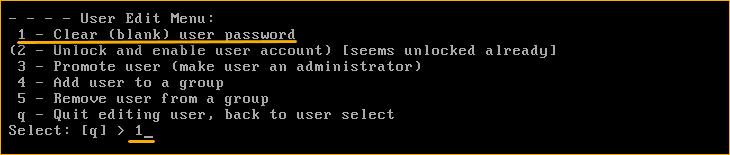
four. On the User Edit Carte, you lot'll notice that in that location'due south no option to reset the password, and that is normal—instead, type 1 to select the option to Articulate (blank) user password and press Enter.
Choosing this option will clear the user'southward password. Consequently, you tin can log in to Windows using this user account without entering a password.
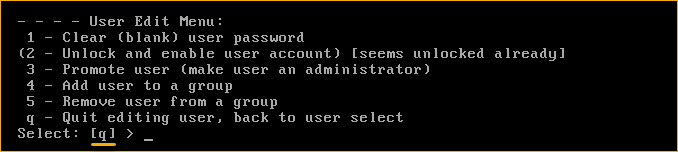
After clearing the password, you should come across a confirmation message like to the screenshot below.

v. Now, press Enter to leave the User Edit Carte du jour.
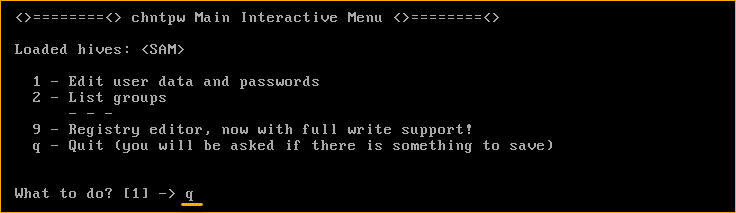
half dozen. Back at the Main Interactive Menu, type q, and printing Enter to exit.
7. At the next prompt, type y and press Enter. This action volition write the changes you made (clear password) back to the SAM registry hive.
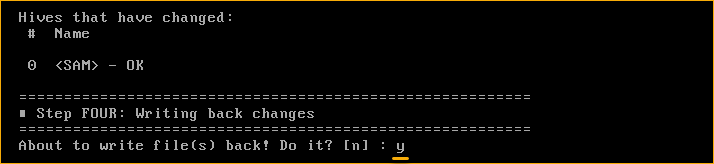
Afterward saving the changes, you should see a message saying EDIT COMPLETE. You have now finished resetting the Windows 10 user countersign.
8. Finally, unplug the USB drive from your computer and press CTRL+ALT+DEL to restart your computer and boot into Windows. You tin then log in using the account without entering a countersign.
Conclusion
This tutorial showed you lot that a forgotten or lost countersign does not necessarily mean that you've already lost access to your computer. Don't lose hope notwithstanding. Yous've learned that the NTPasswd password reset utility can exist a lifesaver in such situations.
Autonomously from resetting passwords, there are other NTPasswd usage scenarios that yous tin can endeavor. How nearly enabling the built-in administrator account, promoting a standard user as an administrator, and editing the registry offline?
Source: https://adamtheautomator.com/ntpasswd/
Posted by: haynesariervintend.blogspot.com
0 Response to "Offline Nt Password & Registry Editor"
Post a Comment